
This is the number one reason people ask:
“Why isn’t this page ranking?”
Because it was told not to.
Not penalized.
Not ignored.
Not shadow-banned.
Told. Not. To.
Let’s walk through this calmly and fix it if needed.
What “noindex” Means
A noindex directive tells search engines:
“You’re allowed to read this page, but don’t show it in search results.”
That’s it.
This is different from robots.txt, and mixing them up causes a lot of unnecessary panic.
- robots.txt = “Don’t read this page at all.”
- noindex = “Read it, but don’t list it.”
Both are intentional controls.
One blocks access.
The other blocks visibility.
Step-by-Step: How to Check If a Page Is Noindexed
Step 1: Check Using Google Search Console (Recommended)
This is the fastest and most reliable method.
- Open Google Search Console
- Paste the full page URL into the top search bar
- Press Enter
Look at the result.
If you see:
- “Excluded by ‘noindex’ tag”
That page is doing exactly what it was instructed to do.
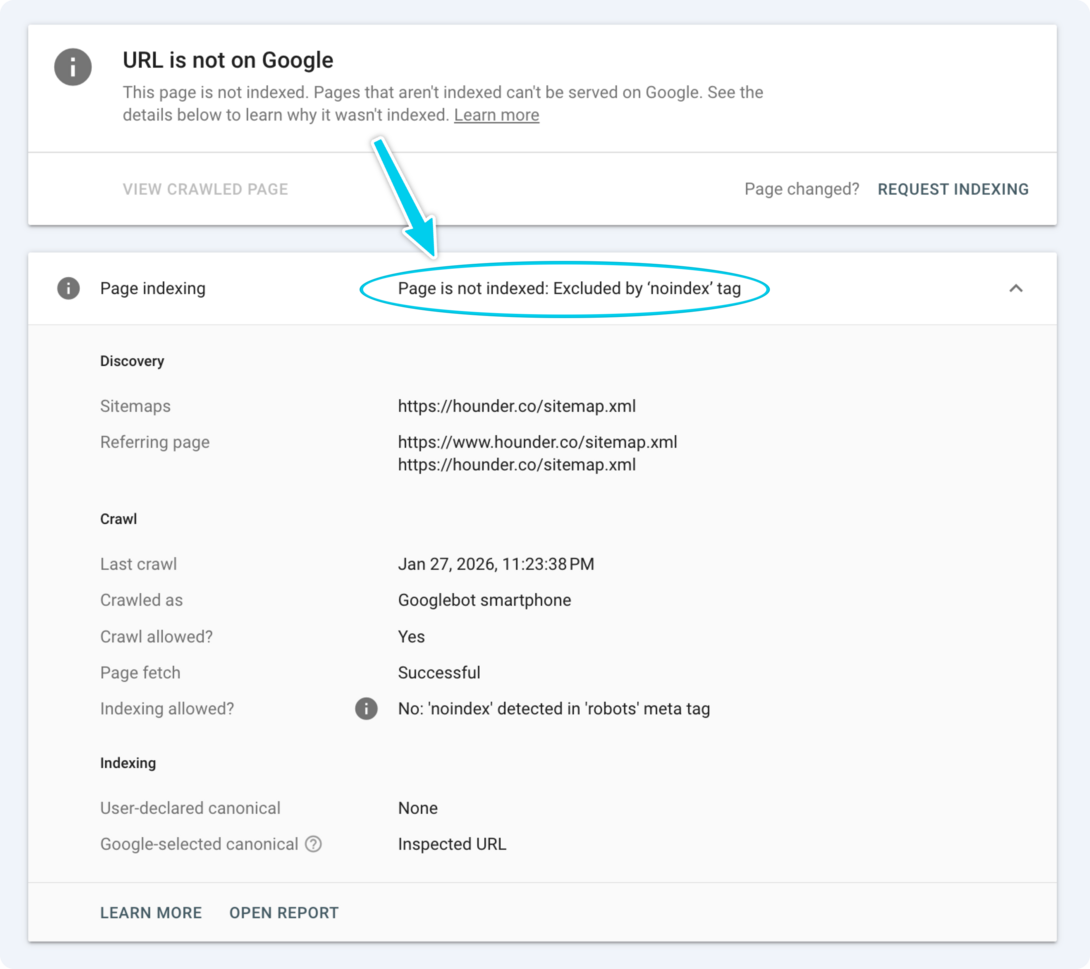
No mystery.
No guessing.
Step 2: Check the Page Source (Optional but Useful)
This confirms how the noindex is being applied.
- Open the page in your browser
- Right-click → View Page Source
- Use Find (Cmd/Ctrl + F)
- Search for:
noindex
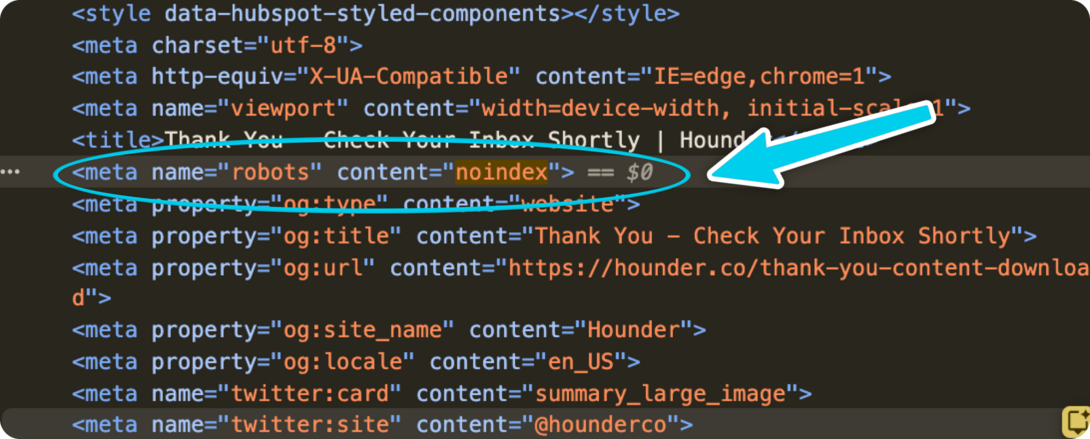
If you see:
<meta name="robots" content="noindex">
That’s the directive telling search engines to keep the page out of results.
Step 3: Check for Noindex at the HTTP Header Level (Edge Case)
Sometimes noindex is set in the HTTP response header, not the HTML.
Edge case = I don’t even have an example to show you.
This often happens with:
- PDFs
- Programmatic pages
- CDN or server rules
- Security plugins
In Search Console’s URL Inspection, look for:
- “Noindex detected in HTTP header”
If you see that, the fix is not in the page editor.
It’s at the server or CDN level.
Why Pages Get Noindexed (Very Common Reasons)
Most noindex issues are accidental, not malicious.
Common causes:
- SEO plugins set incorrectly
- CMS defaults misconfigured
- Draft pages accidentally published
- Staging environments copied to production
- Entire sections marked noindex and forgotten
- Bulk “noindex all tag pages” rules that went too far
- Old campaign or landing pages intentionally excluded
Noindex is a useful tool.
Accidental noindex is NOT a useful tool, it’s destructive.
What To Do Next (After You Find The Noindex’s)
Ask one simple question:
Should this page appear in search results?
If YES (it should rank)
- Remove the noindex directive
- Save the page
- Go back to Google Search Console
- Click Request Indexing
Then wait. Google will reprocess it.
Important note:
If the page is also blocked by robots.txt, remove that block first. Google can’t honor a noindex removal if it can’t crawl the page.
If NO (it should stay hidden)
Do nothing.
You’ve confirmed the system is behaving correctly. You win, go home, have a bubble bath.
Common Mistakes to Avoid (!!!)
- Removing noindex but forgetting robots.txt is still blocking the page
- Requesting indexing repeatedly (once is enough)
- Assuming noindex = penalty
- Panic-deleting pages instead of checking directives
- Forgetting that templates can apply noindex site-wide
Most SEO “mysteries” are configuration leftovers.
How to Think the “noindex” Tag
Here’s the mental perspective that saves the most stress.
Noindex is not bad.
Noindex is intent.
Your site should have pages that never rank:
- Thank-you pages
- Internal tools
- Temporary campaigns
- Utility content
- Drafts and experiments
The mistake isn’t using noindex, it’s forgetting it exists.
When SEO feels broken, it’s usually not because Google is being weird. It’s because a rule you set months ago is still doing its job.
Once you know where noindex lives, it stops being mysterious and starts being useful.
A Quick Mental Model To Help You Lock In These Meanings
- robots.txt decides if Google can read the page
- noindex decides if Google can show the page
- duplicates decide which page Google should trust
If you can answer those three questions, you’re no longer guessing.